Features

Everything between a patient and a final report

Only what WAVEREPORT does today is listed here. Features that are not finished are not advertised.

Core features

Patient worklist

Waiting, in review and finalized cases, with search and filters. Opening a patient goes straight to the report.

Reporting editor

Write and edit reports, with drafts saved as you work and bold formatting for emphasis.

Official Templates

A centrally managed catalogue of starting templates, searchable from the editor.

Personal presets

Save your own wording as presets and find them again by search.

Clinical history and documents

Helpers attach PDF, JPEG or PNG history documents that the radiologist reads while reporting.

Urgent cases

A sender can mark a case urgent. It shows as a badge in the worklist.

Finalize and lock

A finalized report is frozen and cannot be edited.

Doctor profile, signature, clinic pad

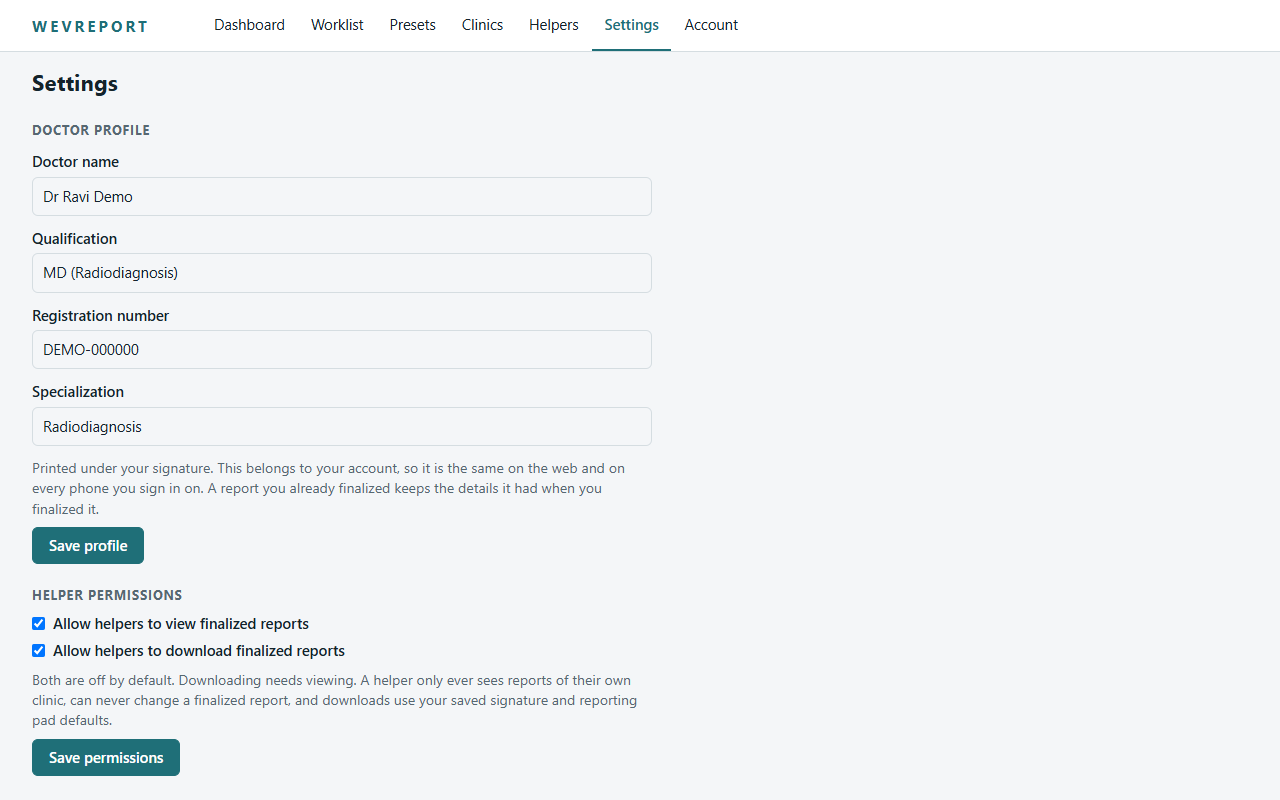
Your details, signature and clinic letterhead belong to your account. Choose with or without signature, with or without pad.

PDF reports

Download the final report as a PDF built from the frozen, finalized version.

Helper permissions

Decide whether helpers may view and/or download finalized reports. Both are off until you turn them on.

Web and Android

Use the web application in a browser and the Android app on your phone with the same account.

Account protection

Email verification, password rules, and sign-out of all devices.

Product tour

Worklist to final report

Android screens appear as they are supplied from the current release build; web screens are real captures of the application with synthetic data.

1. Worklist

What you are seeing
Cases waiting for you, newest first, with urgent badges.
What the user does
Open the worklist, filter by status or search, and click a patient.
What happens next
The case opens straight into the report editor.
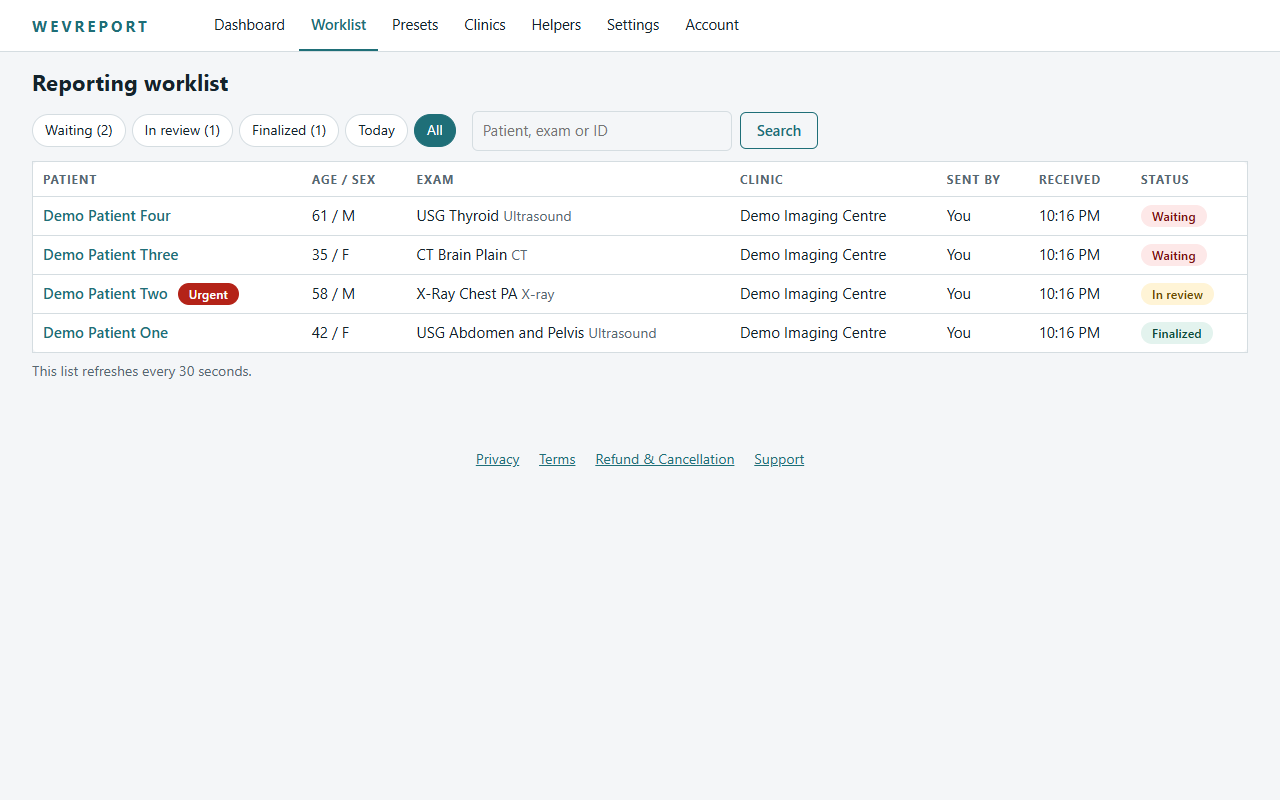
WAVEREPORT web worklist listing synthetic demo cases
Worklist on the web (synthetic demo data).

2. Patient and history

What you are seeing
Patient details, the study, clinical history and attached history documents.
What the user does
Read the history and open any attached document.
What happens next
You start the report with the full picture.
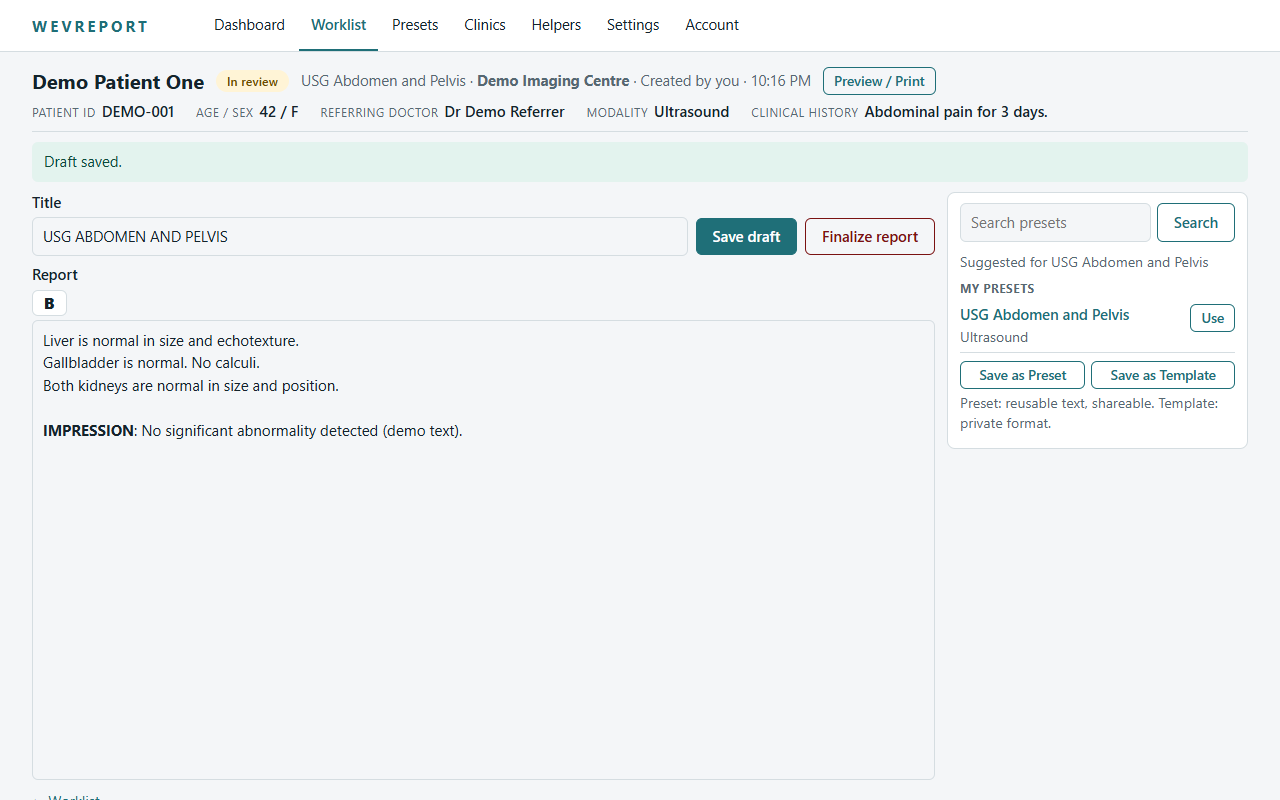
WAVEREPORT web report editor with patient summary and report text
Report editor on the web (synthetic demo data).

3. Reporting

What you are seeing
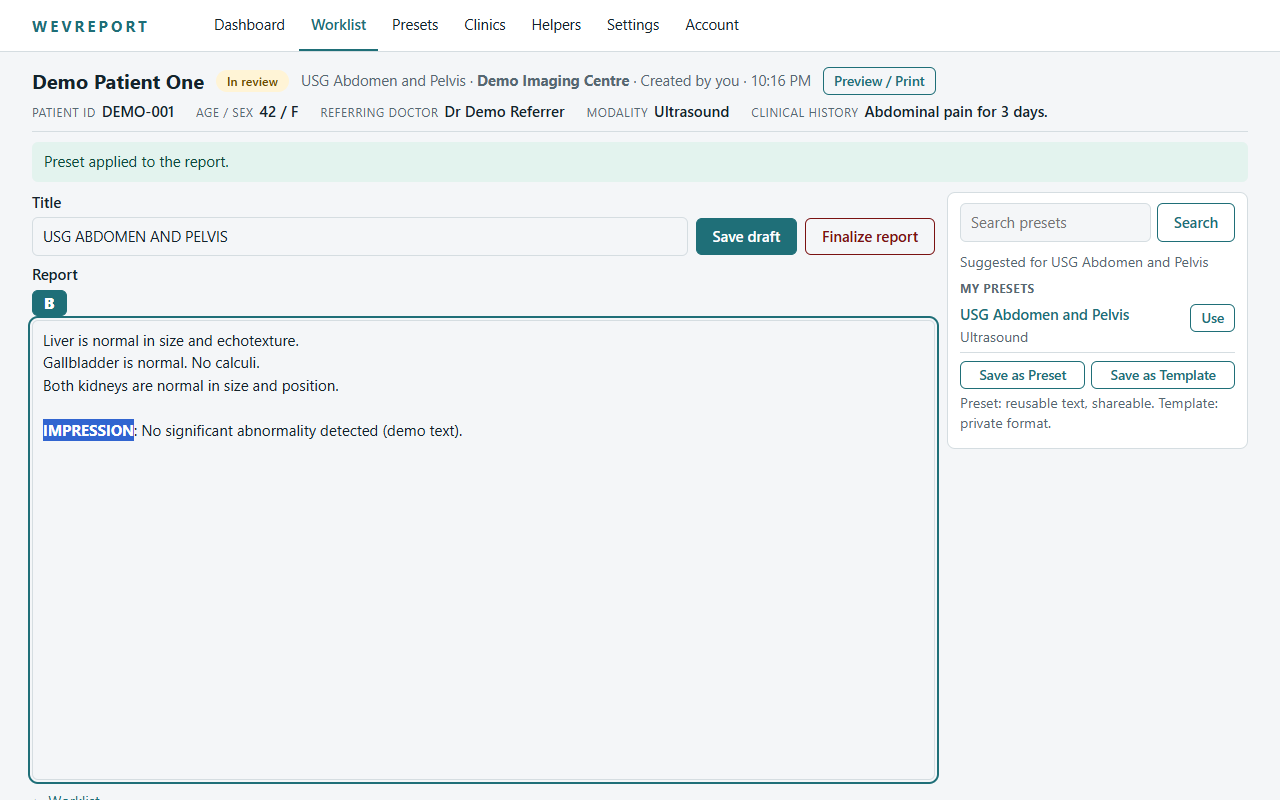
The editor, with bold formatting and automatic drafts.
What the user does
Write or edit the findings and impression.
What happens next
The draft is saved; you can leave and return.
WAVEREPORT web editor with bold formatting applied
Bold formatting in the web editor.

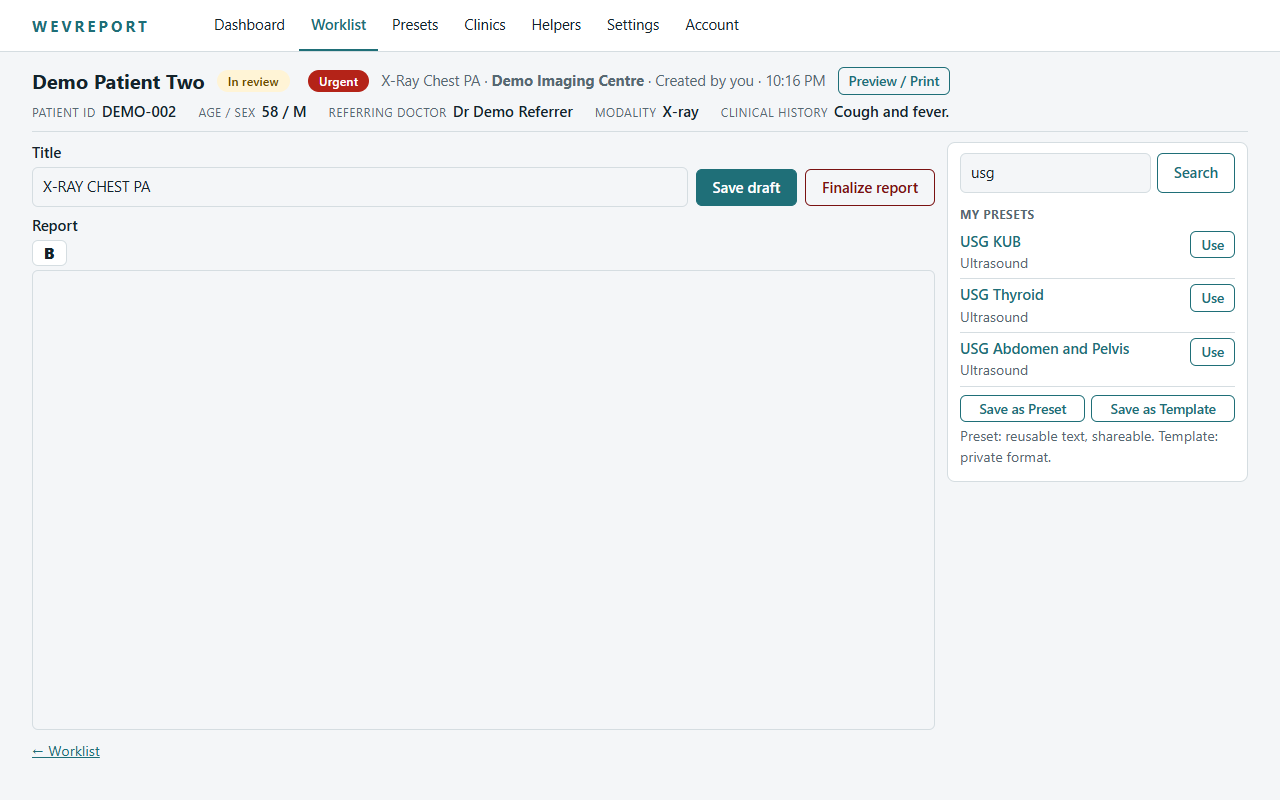
4. Template

What you are seeing
Official Templates and your presets, searchable from the editor.
What the user does
Search by name, then insert a template as a starting point.
What happens next
The text lands in the editor for you to edit.
WAVEREPORT web editor side panel searching templates and presets
Searching templates and presets from the editor.

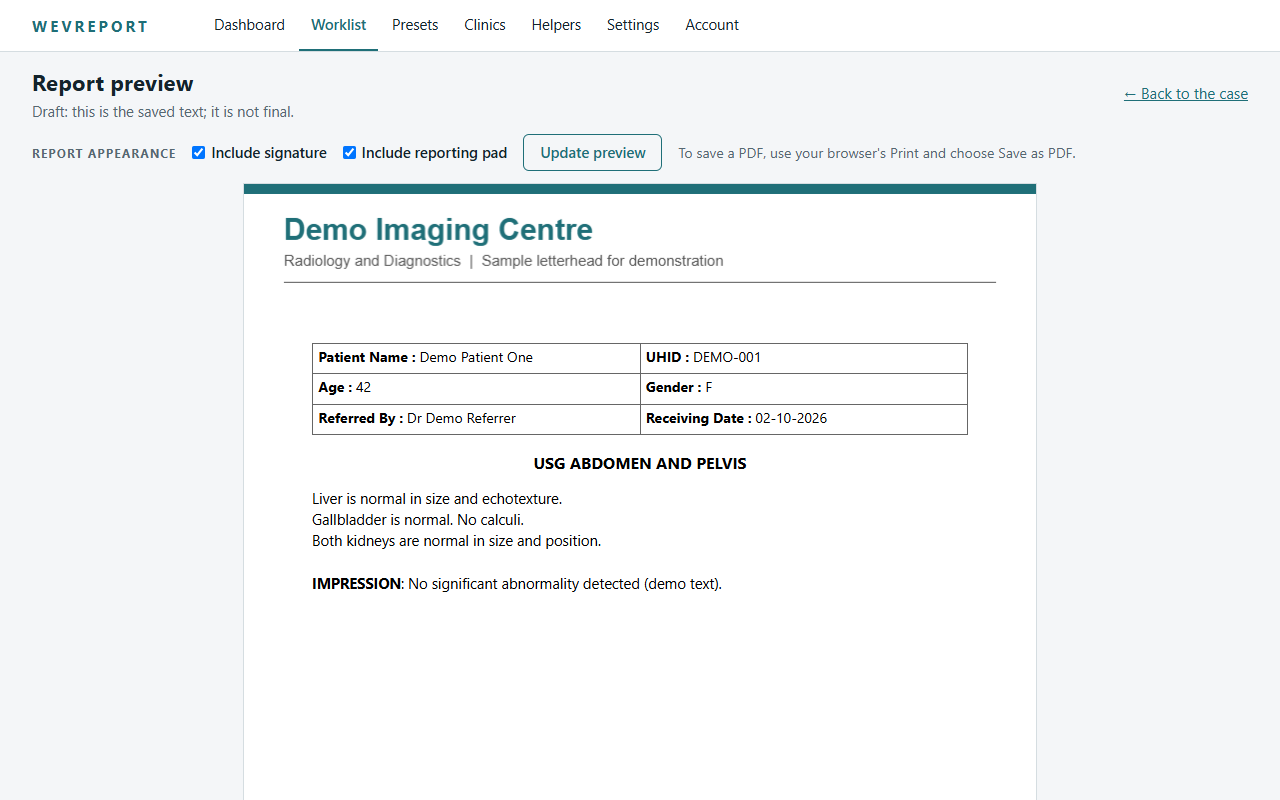
5. Preview

What you are seeing
The report laid out as the final document.
What the user does
Choose whether to show the signature and clinic pad.
What happens next
Satisfied, you finalize.
WAVEREPORT web report preview shaped like the final document
Report preview, laid out like the final PDF.

6. Final report

What you are seeing
The frozen, finalized report.
What the user does
Download the PDF, or share where supported.
What happens next
The report can no longer be edited.
WAVEREPORT web report preview shaped like the final document
Report preview, laid out like the final PDF.

7. Settings

What you are seeing
Doctor profile, signature, clinic pad, appearance and helper permissions.
What the user does
Set these once; they apply to future reports.
What happens next
Finalized reports keep what they were issued with.
WAVEREPORT web settings page
Settings.

Not available yet

To keep this page honest, here is what is not offered today.

  • Push notifications for new cases
  • Patient-facing report download by QR code or one-time password
  • Paid subscription plans (see Plans)
Get StartedUser guide