

Getting started
Getting started
Create and verify your account
A radiologist account is created on the web.
- Open the website and choose Get Started.
- Enter your full name, email, a password of at least 10 characters, and optionally a phone number.
- WAVEREPORT emails you a 6-digit code. Enter it on the verification page. The code expires after 10 minutes; you can request a new one a minute after the last.
- Sign in with your email (or username) and password.
Forgot your password? Use Forgot Password on the sign-in page.
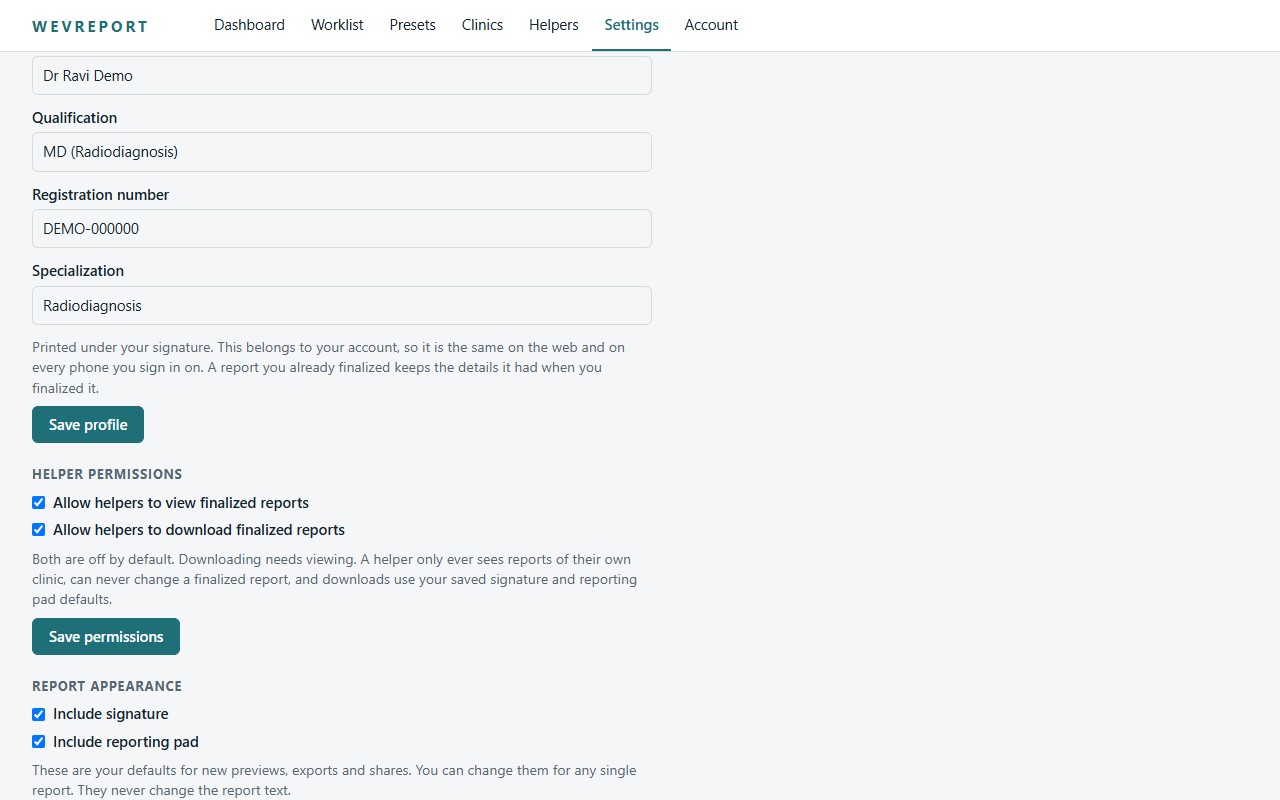
Set up your doctor profile
Settings → Doctor profile.
- Open Settings.
- Enter your name, qualification, registration number and specialization.
- Choose Save profile.
These details appear on your reports. A report you have already finalized keeps the details it was issued with.
Signature and clinic pad
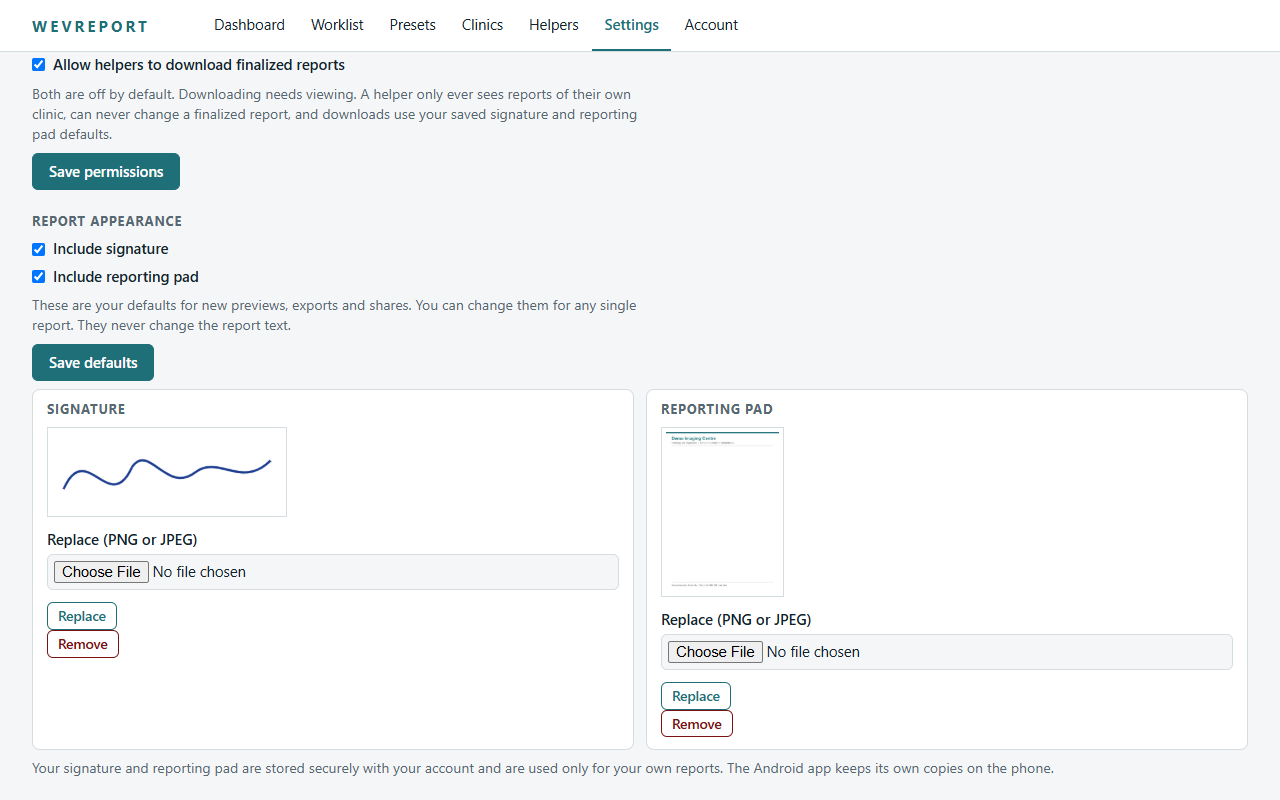
Settings → Report appearance.
- Upload a PNG or JPEG of your signature (up to 512 KB).
- Upload your clinic pad / letterhead image if you use one (up to 3 MB).
- Choose your defaults: with or without signature, with or without clinic pad, then Save defaults.
On each report preview you can still switch the signature and pad on or off for that report.
Appearance and account settings
- Use Account to change your password or sign out of all devices.
- Changing your password signs out your other devices.
Radiologist guide
Radiologist guide
Dashboard
- After signing in you land on the Dashboard with your reporting counts and shortcuts.
- Use the top menu to open Worklist, Presets, Clinics, Helpers and Settings.
Worklist and opening a patient
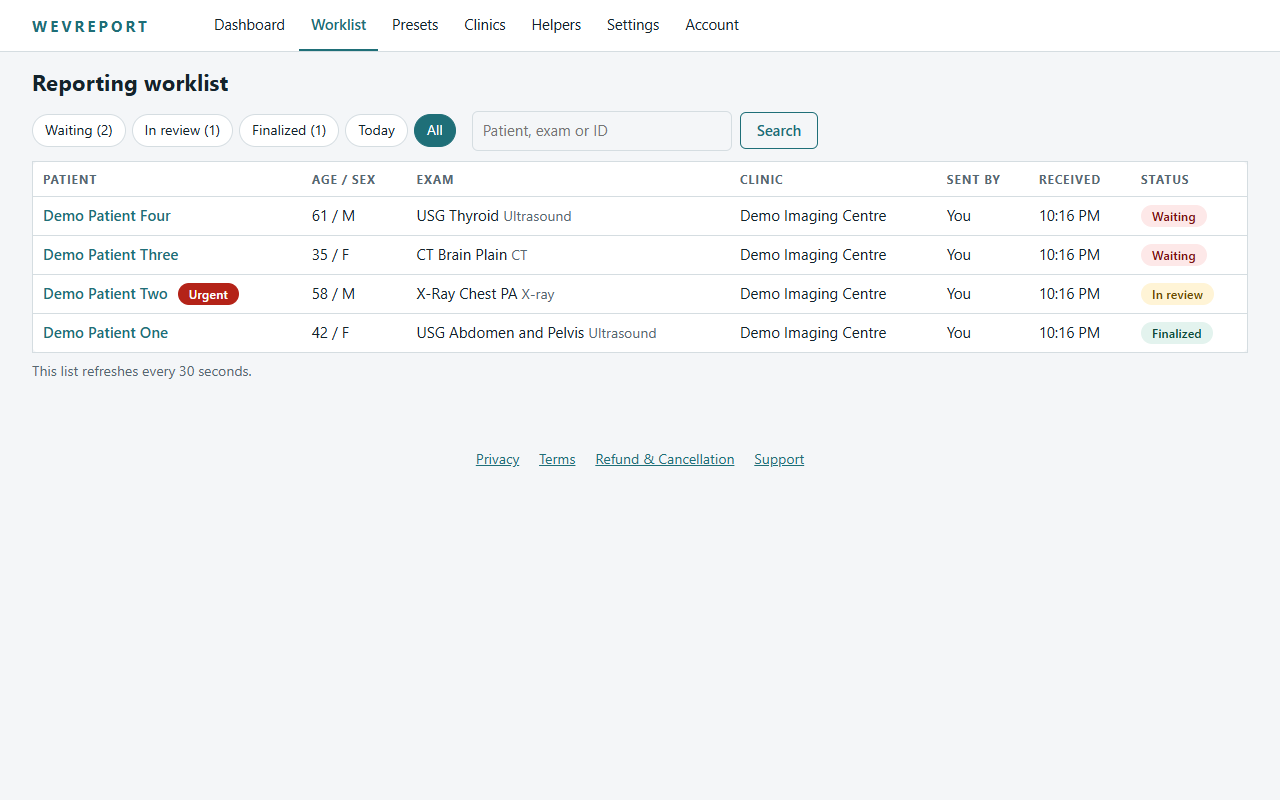
- Open Worklist to see cases. Filter by status, clinic or search for a patient.
- Click a patient name to open the case.
- New cases from helpers show as waiting. Urgent cases carry an Urgent badge.
- Choose Open for review to start the report. The case is now In review.
Clinical history and attachments
- The case shows the patient, study and clinical history entered by the sender.
- Documents attached by the sender (PDF, JPEG, PNG) are in the Patient history panel beside the editor. Open or download them while you report.
- Attached documents are for your reference only; they are not placed in the report or the final PDF.
Report title, editor and bold
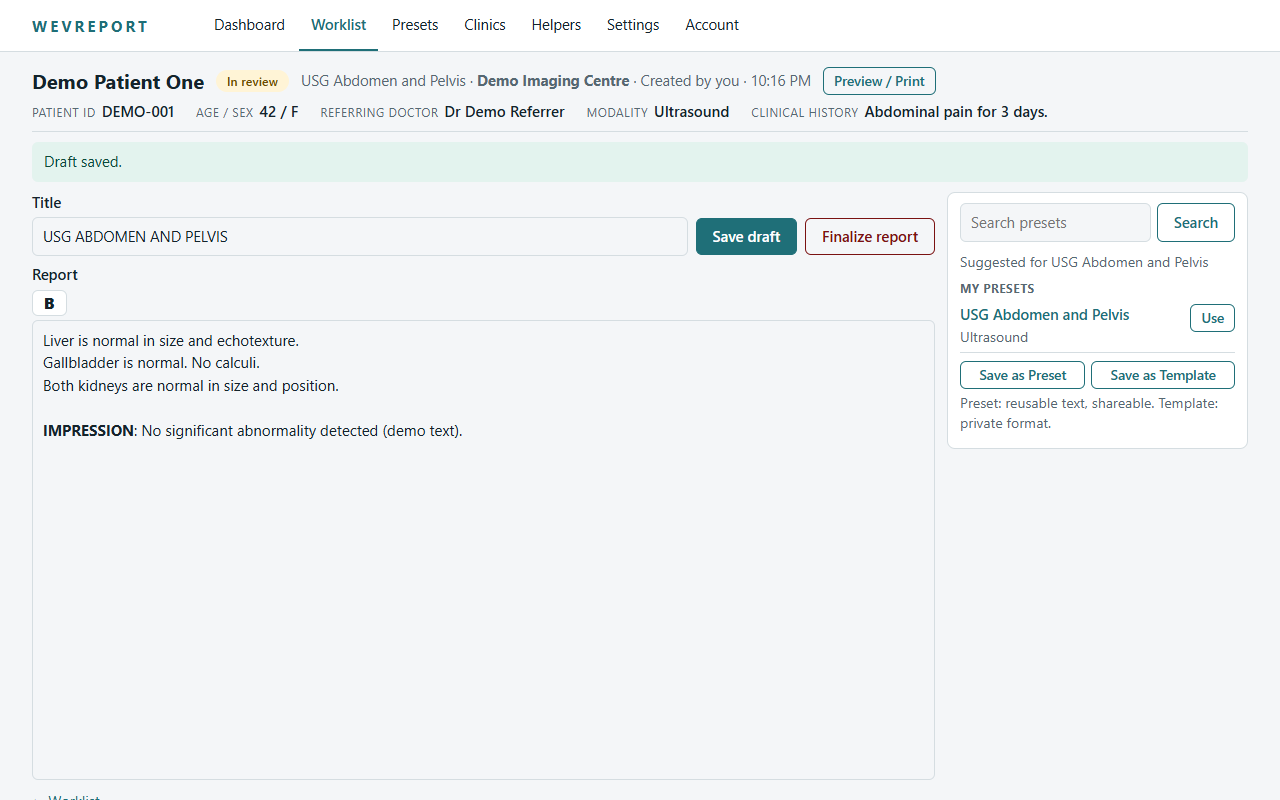
- Enter or edit the report title.
- Write the report in the editor. Use the Bold button to emphasise text; select text and press it, or press it and type.
- Pressing Enter keeps your line breaks.
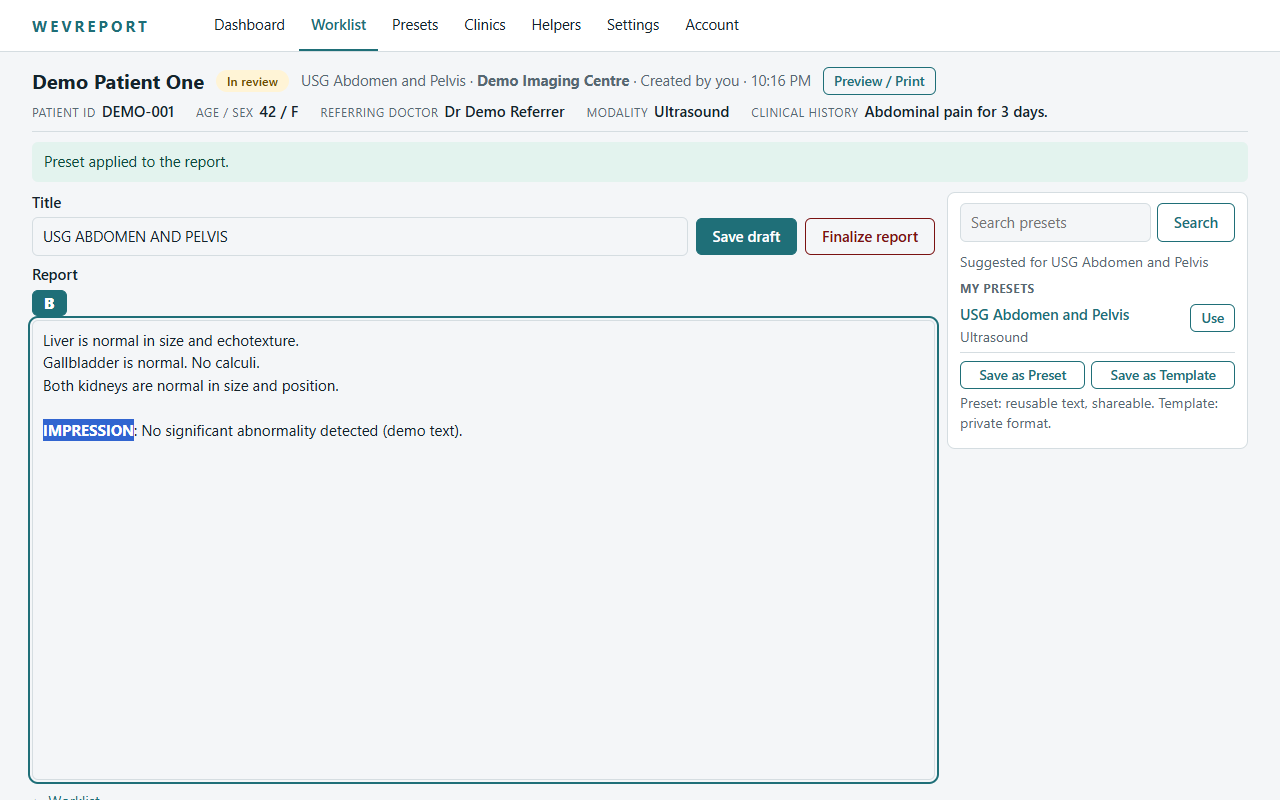
Templates and presets in the editor
- In the side panel, search for a template or preset by name or keyword.
- Choose Use to put it into the report as a starting point.
- Edit freely. The reporting clinician is responsible for the final content.
See the Templates section below for the difference between Official Templates, personal templates and presets.
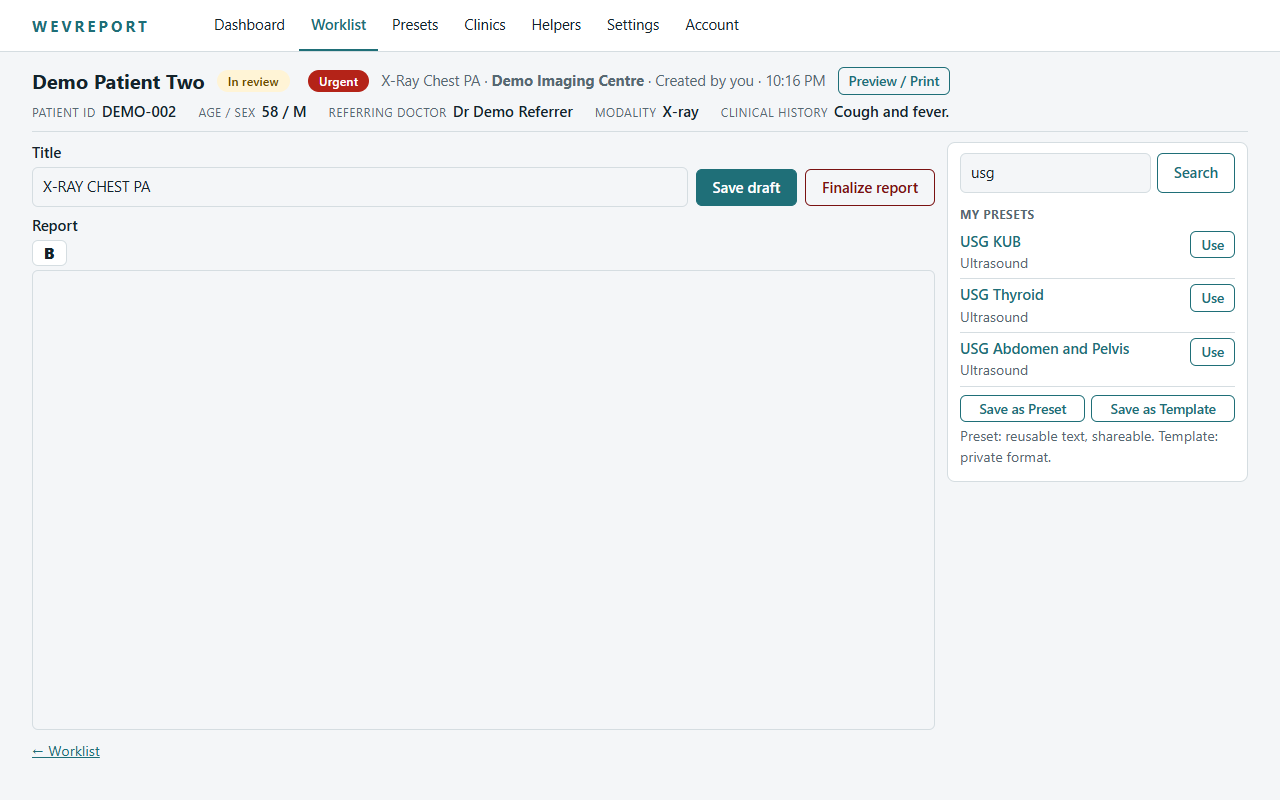
Save and reopen a draft
- Choose Save draft at any time.
- Return later: open the same case from the Worklist and your draft is there. If the case was changed elsewhere in the meantime, WAVEREPORT warns you rather than overwriting.
Preview
- Choose Preview / Print to see the report laid out like the final document.
- Switch the signature and clinic pad on or off for this report.
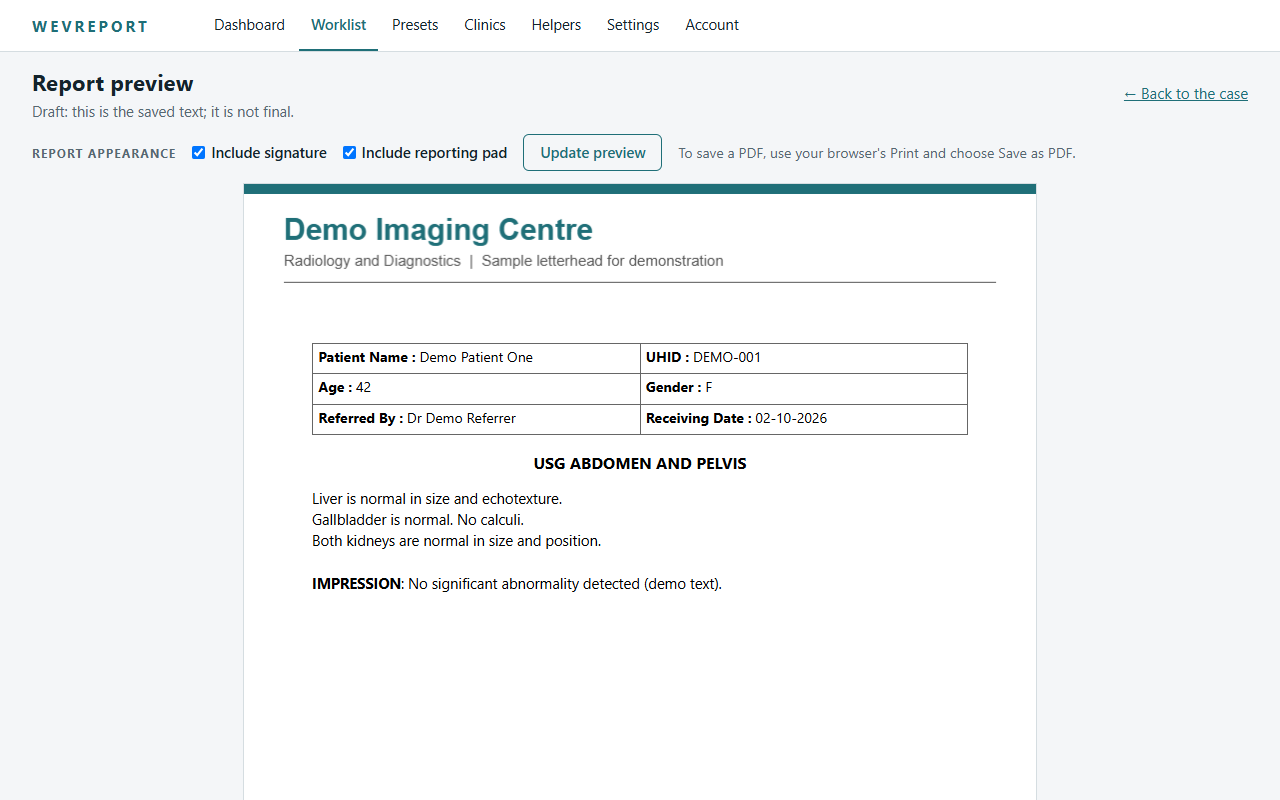
Finalize
- When you are satisfied, choose Finalize report.
- Finalizing freezes the report with your details, signature and clinic pad. A finalized report cannot be edited.
There is no edit button on a finalized report by design.
Final report, download and share
- Open a finalized case to read its locked report.
- Choose Download PDF to download it. The PDF is built from the frozen, finalized version.
- On Android you can also share the report using the phone's share menu.
Clinic and helper guide
Clinic and helper guide
Create clinics and helpers (radiologist)
- Open Clinics and choose Add clinic for each clinic or hospital you report for.
- Open Helpers, choose Add helper, pick the clinic, and give the helper a username and a starting password.
- Share the username and password with the helper privately. A helper belongs to one clinic.
Add a patient and clinical history
- The helper signs in with the username and password.
- Choose New case.
- Enter the patient details, the study and the clinical history.
- Tick the urgent option only when the case really is urgent.
Attach history documents
- On the case, choose a PDF, JPEG or PNG file and upload it. One file at a time.
- Each file can be up to 8 MB, with up to 8 files per case.
- Files can be added or removed only while the case is waiting.
Send the case
- Choose Send for reporting.
- The case appears in the radiologist's worklist.
- While it is still waiting, the sender can correct patient details.
View or download finalized reports
- If the radiologist has allowed it, the helper can read finalized reports for their own clinic.
- If downloading is also allowed, the helper can download the PDF.
- If neither is allowed, the helper sees the case status only.
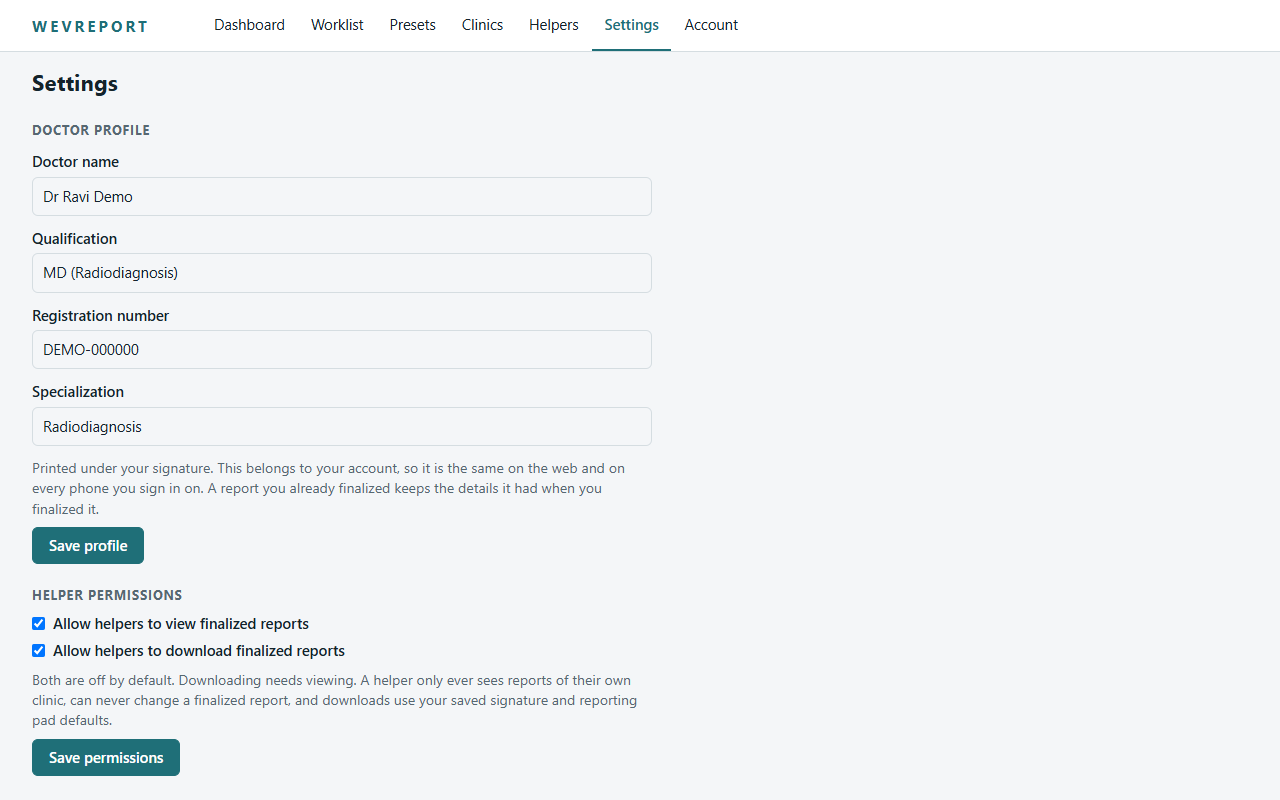
Permission controls (radiologist)
- Open Settings → Helper permissions.
- Switch Allow helpers to view finalized reports on or off.
- Switch Allow helpers to download finalized reports on or off. Download needs view.
- Choose Save permissions.
Both switches start off. Helpers can never edit finalized reports.
Templates
Templates
Official Templates, personal templates and presets
- Official Templates are a managed catalogue published by WAVEREPORT administrators. Everyone sees the same published catalogue.
- Personal templates and presets are yours alone.
- Templates and presets are starting points. They are not clinical advice.
Search and use
- Search by name or keyword in the editor side panel or the Presets page.
- Choose Use to put the text in the report.
- Edit the text to fit the patient and the study.
Save your own
- In a report you like, choose Save as Preset or Save as Template.
- WAVEREPORT checks the text for patient identifiers and asks you to remove them before it is saved for reuse.
- You can also create a preset from the Presets page.
Edit templates
- Open a personal preset and choose Save new version. Earlier versions are kept, so reports made from them stay reproducible.
- Official Templates are edited by administrators, not by users.
Favorites are not available yet.
Need help?
Visit Contact and support. Please do not send patient names or identifiers by email.
WAVEREPORT is a reporting and workflow tool. The reporting clinician is responsible for every report. See the medical disclaimer.